Score & Timekeeping Manual
Table of Contents
1. Overview
The home team is responsible for providing score and timekeepers, as well as payment of officials. The Team Manager should ensure this is arranged in advance.
Being a timekeeper or scorekeeper is a rewarding way to contribute to essential team tasks and a great way to gain a new perspective on the game. Your team manager will thank you! Spending just a few minutes reviewing the tips in this section before the game will go a long way in keeping the experience enjoyable and stress free.
Important Points to Remember
While timekeeping and scorekeeping aren't overly complicated, here are some important points to remember to keep everything running smoothly:
- To ensure impartiality, timekeepers and scorekeepers should avoid any interaction with bench staff or players from either team.
- Interaction with the on-ice officials should be limited to communicating penalties, goals, and period times.
- Penalties must be correctly recorded, including the type and the time of the incident. If this information is incorrect (especially with major penalties), significant effort by team management, officials and PCAHA volunteers will be needed after the game to determine if suspensions are necessary.
- After the game, the referee must carefully review the penalties, especially any major penalties that may result in suspensions, before signing off on the game. The scorekeeper can help by pointing out any penalties that they are uncertain about.
2. Scorekeeping
VMHA uses the Spordle online electronic game sheet app to track game scores and penalties. Besides some setup details (help is below), Spordle is fairly intuitive to use. This page gives lots of details on how to use Spordle: https://help.hisports.app/
2.1 Spordle Setup
Give yourself lots of time to get Spordle opened and set up (I usually start while the players are getting changed). Note that Spordle is an online web-based app, so you don't need to install anything on your phone, tablet or laptop as it's all in your browser via https://hisports.app/
You'll need to select the 'Scorekeeper' button at the top. Note that if you happen to be logged into Spordle for other functions, you'll need to log out before you can switch to using the scorekeeper function.
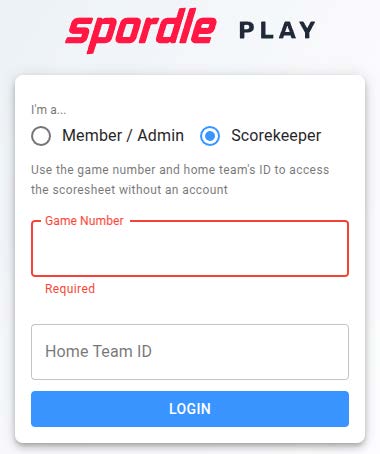
You'll need both the game number and your team ID. Your team manager will supply these, ideally in the TeamSnap schedule for each game for easy copy-and-pasting (they are pretty long!). Note that the game number is first; it's easy to get these reversed and get a confusing message about not being able to login.
Before starting the game, the team manager needs to enter the players and bench staff for the game. When things go well, they do this via their own Spordle app, which then automatically registers the lineup with the scorekeeper's app. However, occasionally the team manager is away, or there can be connection issues with their device. In this case, the player and bench lineups can be entered by the team representative (manager, coach, HCSP) through the scorekeepers device. This does take a minute, so getting started early certainly helps keep everything calm.
2.2 Scorekeeping Tips
- Bring a pen and a piece of paper to quickly write down the details of the goals and penalties. Then there is less time pressure to get these entered into Spordle.
- A good practice is for team managers to put the team and game numbers in the notes in TeamSnap for easy copying into Spordle.
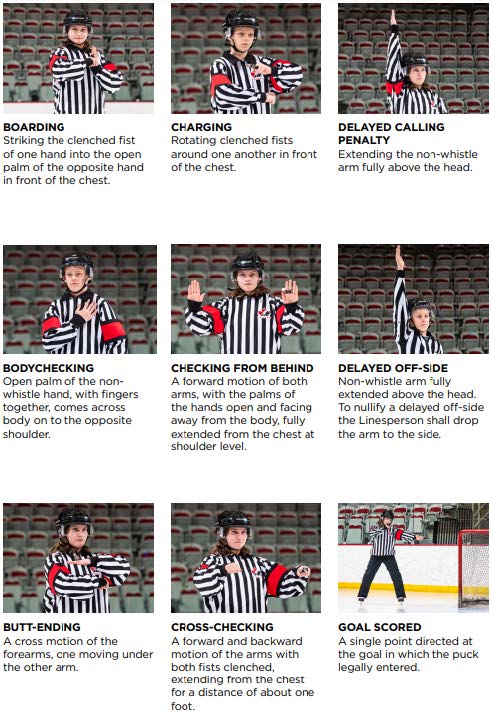
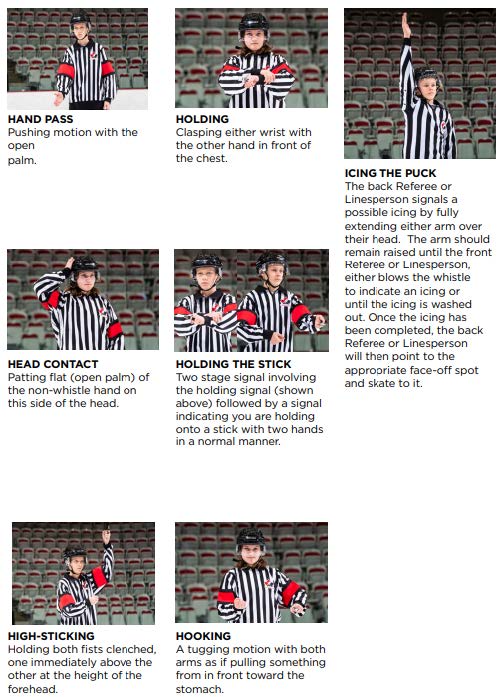
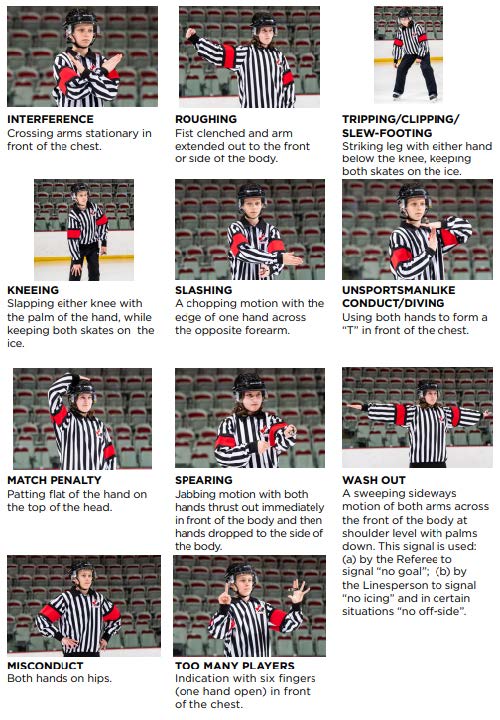
- The officials are responsible for keeping the game moving, and so can be brief when communicating penalties. It's important to listen carefully and not hesitate to quickly double-check penalties with them before the face-off. Penalty hand signals are given at the end of this section to help make this easier.
- Avoid talking with players in the penalty box. It's natural to want to calm agitated players, but this distracts you from the game and may be seen as favouritism.
3. Timekeeping
Like scorekeeping, spending a bit of time before the game (say, while the ice is being cleaned) working through the scoreboard functions helps keep the task fun and relaxing. Work through setting time, setting the period, adding multiple penalties and clearing penalties and changing the score so that you can do this smoothly during game time. The officials can't drop the puck until the penalties are correctly displayed.
Every scoreboard seems different! Most of them have guide sheets beside them, though they are of varying usefulness and can be missing really important information that can cause them to not run (see Trout Lake below, for example). Usage for each scoreboard on VMHA home ice is included at the end of this guide.
3.1 Period Times
The referee should know the period times for the age group and available ice time, including how to evaluate the third period time, but the table below gives the details for reference. The referees have final say, however. The table and quote below is from 2024-2025 PCAH-Rulebook:
| Duration | Warm-up | First | Break | Second | Break | Third |
|---|---|---|---|---|---|---|
| 1 hour | 5 | 10 | none | 15 | none | 15 |
| 1¼ hours | 5 | 15 | none | 15 | none | 15 |
| 1½ hours (body checking) | 5 | 15 | none | 15 | 2 | 20 |
| 1½ hours (non-body checking) | 5 | 15 | none | 20 | 2 | 20 |
| 1¾ hours (body checking) | 5 | 15 | none | 15 | ice clean | 20 |
| 1¾ hours (non-body checking) | 5 | 15 | none | 20 | ice clean | 20 |
| 2 hours | 5 | 20 | none | 20 | ice clean | 20 |
| 2¼ hours | 5 | 20 | ice clean | 20 | ice clean | 20 |
| 2½ hours or more | 5 | 20 | ice clean | 20 | ice clean | 20 |
3.2 Timekeeping Tips
- It's easy to get caught up in the game! It may be helpful to keep a finger on the clock start/stop button to help avoid missing game stoppages. This is especially important when penalties are on the clock.
- It helps to understand coincidental (aka offset) penalties. This happens when a player on each team is assessed penalties of equal duration at the same stoppage of play. In this case, the penalty times are not displayed on the clock, and the players serving the penalties stay in the penalty box until the length of their penalty has passed and there is a stoppage of play. As timekeeper, it helps to take note of the game time at which the penalty ends to help guide the players as to when they can return to play.
- Before dropping the puck at the start of each period, the referee will make sure the goalies and the timekeeper are ready to start. Be ready to acknowledge that you are prepared to start.
4. Referee Signals
Understanding referee signals helps scorekeepers and timekeepers correctly record penalties. The following images show the common referee hand signals used during games:
5. Sunset Arena Scoreboard Instructions
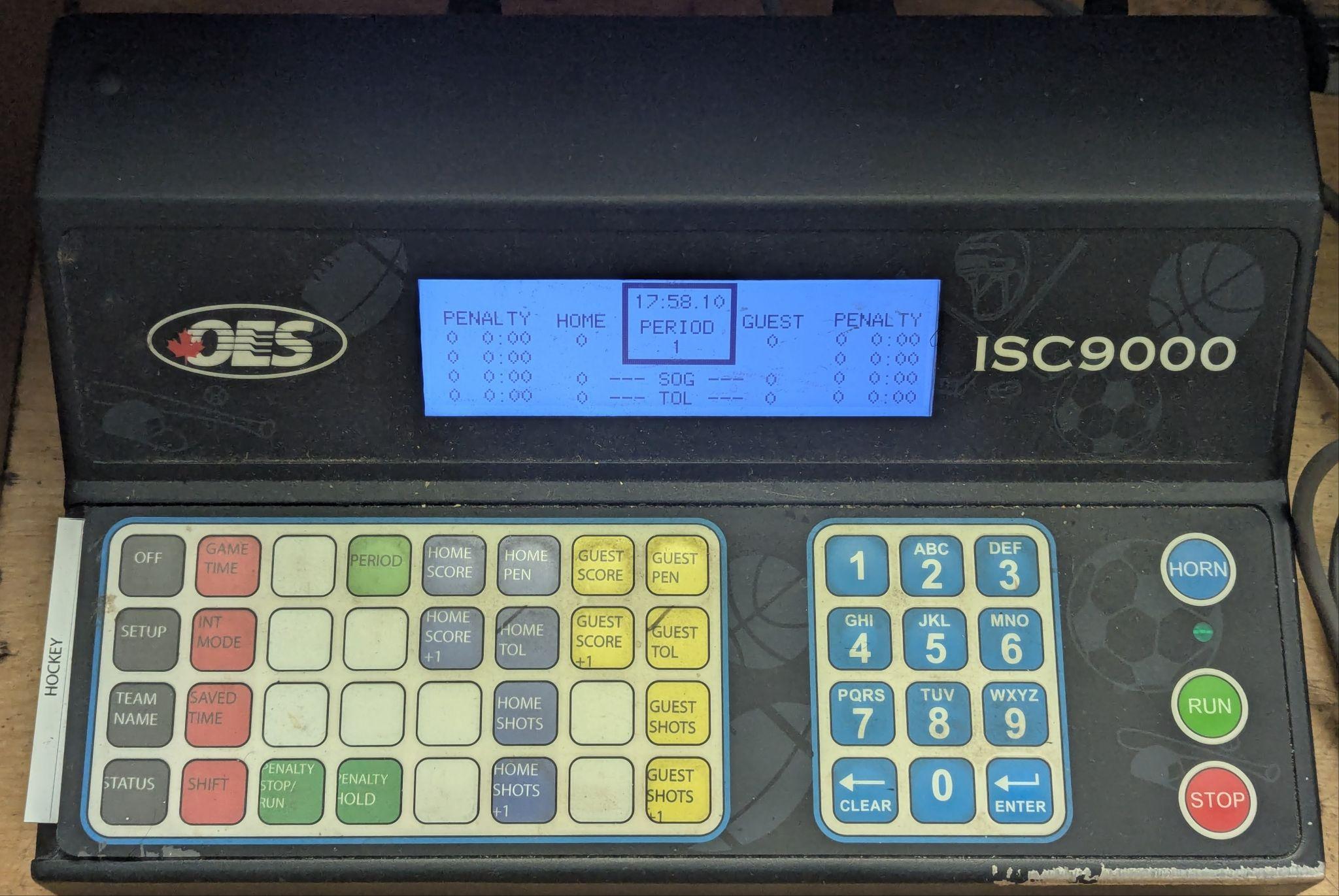
Turning On
There is no power switch, and the controller should be left plugged in. If the scoreboard is off, press any key to start it. Once started, you may be queried to restart a stored game. You can press clear to or wait a few seconds to start a new game.
Setting Game Time
Make sure the toggle switch on the wired remote is set to stop, and the clock is not running.
Press the:
- 'Game Time' button
- Number of minutes, then enter
- Number of seconds, then enter
- Fractions of a second, then enter
Setting the Period
Press the:
- 'Period' button
- Period number, then enter
Starting and Stopping Clock
You can use the 'Run' and 'Stop' buttons on the controller, or the toggle switch on the wired remote. If using the buttons on the controller, the toggle switch on the remote should be set to 'stop'.
Setting the Score
The number of goals can be increased using the 'Home Score +1' or 'Guest Score +1'.
If you need to set the score, press:
- 'Home Score' or 'Guest Score'
- The number of goals, then enter
Adding Penalties
Make sure the toggle switch on the wired remote is set to stop, and the clock is not running.
To add a penalty, press:
- 'Home Pen' or 'Guest Pen'. Make sure the cursor (in the player number column) is on an empty line. If not, press the 'Home Pen' or 'Guest Pen' to move the cursor down to an empty line.
- Player number, then enter
- Minutes in penalty, then enter
- Seconds in penalty, then enter
Clearing Penalties
To clear a penalty:
- Press the 'Home Pen' or 'Guest Pen' repeatedly until the cursor (in the player number column) is on the penalty to be cleared. Note that the cursor will start on the first empty line, so you may need to press it a few times to loop the cursor back to the top of the list.
- Press the 'Clear' button
Using the Intermission Timer
The intermission timer allows you to (optionally) run the clock for the time between periods without affecting any penalty times. While in intermission mode, the controller will show 'Int Mode: <min>:<sec>' in the upper left corner of the controller display. To use the intermission mode, press:
- 'Int Mode'
- Number of minutes, then enter
- Number of seconds, then enter
- Use the wired remote or 'Run' and 'Stop' buttons to run the intermission time
- At any time you can press the 'Int Mode' button again to return to the normal game time mode.
You can also set the game time for the next period while the intermission mode clock is running.
Turning off the Controller Board
Press and hold the 'Off' button until the 'Controller functions off' message appears. Do not unplug the controller.
Audio Connections
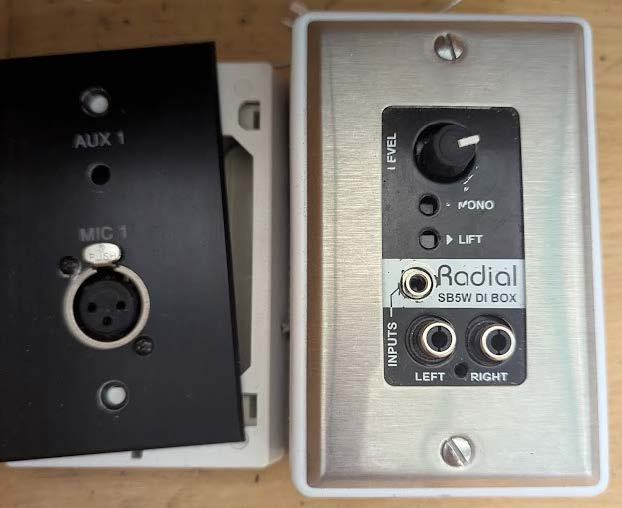
Sunset has a 3.5mm and RCA connections.